Demystifying the "403 Forbidden" Error: What It Means and How to Fix It
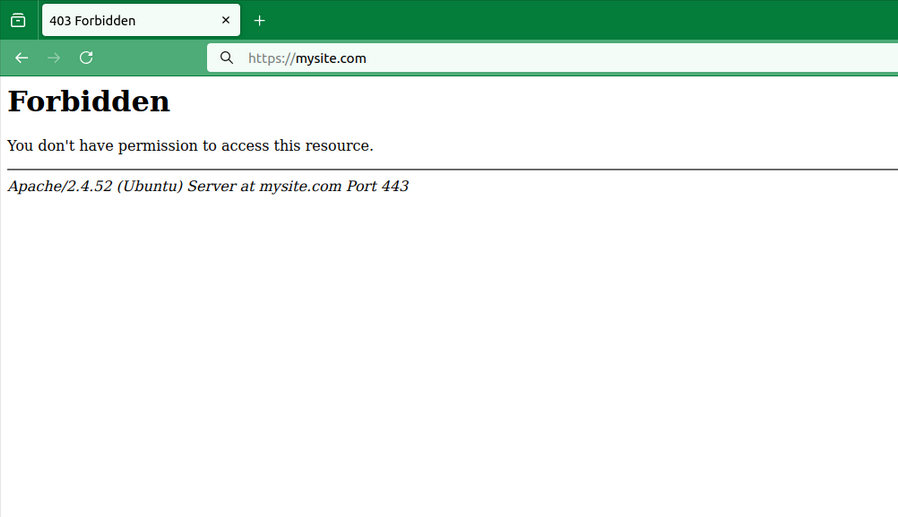
You’re trying to access your own newly built webpage when suddenly, you’re hit with a stark, black-and-white brick wall of an error message:
Forbidden
You don't have permission to access this resource.
It looks intimidating, like you’ve accidentally stumbled into a digital restricted area. But don't panic. The 403 Forbidden error is one of the most common issues on the internet. Whether you are a regular web surfer or a website owner, this guide will explain exactly what this error is, why it happens, and how to fix it.
What is a 403 Forbidden Error?
At its core, a 403 Forbidden error is an HTTP status code. When you type a URL into your browser, your browser sends a request to the website's server.
A 403 status code means the server received your request and understood exactly what you wanted to do, but it is refusing to let you in.
Think of it like trying to enter a private club: the bouncer (the server) hears you, acknowledges you, but points to the lock on the door and says, "Your name isn't on the list." It differs from a 404 error (which means the page doesn't exist) because, in this case, the resource does exist—you just aren't allowed to see it.
Why Is This Happening on Your Drupal Site?
A 403 error on a Drupal site generally boils down to four main culprits:
Drupal Permissions and Access Control: The user (or an anonymous visitor) doesn't have the explicit role or permission required to view that specific node, view, or taxonomy term.
Incorrect Server File Permissions: The server's file system is configured too strictly, preventing the web server user (like www-data or apache) from reading Drupal’s core files or the sites/default/files directory.
Corrupt or Misconfigured .htaccess (Apache) or Nginx Config: Drupal relies heavily on rewrite rules. A broken .htaccess file in your root folder or inside the files directory will trigger a server-level 403.
Security Modules or Firewalls: Modules like Automated Ban, Shield, or external web application firewalls (WAFs) like Cloudflare might have mistakenly flagged an IP address or request.
The Guide to Fixing a 403 Error in Drupal
Because Drupal handles routing deeply, work your way from the most common Drupal-specific issues down to server-level troubleshooting.
Solution 1: Check and Fix Server File and Folder Permissions
If your server permissions are wrong, the web server won't even let Drupal load. Drupal requires specific permissions to remain secure while operating properly.
Connect to your server via SSH or FTP, navigate to your Drupal root directory, and verify the following standard permissions:
Folders/Directories: Should generally be set to 755 or 750.
Files: Should generally be set to 644 or 640.
The settings.php file: Drupal automatically tries to lock this down to 444 (read-only) for security. If it is misconfigured, change it to 644 temporarily to edit, then back to 444.
The Files Directory: Ensure that sites/default/files is owned by the web server user (e.g., www-data or apache) and set to 775 or 755 so Drupal can write managed files, CSS, and JS aggregates.
Solution 2: Check for .htaccess Blockers (Apache Servers)
Drupal ships with a highly specific .htaccess file in the root directory, and a secondary one inside sites/default/files to prevent malicious scripts from executing.
Root .htaccess: If you recently updated Drupal core, ensure your .htaccess wasn't overwritten if you had custom modifications (like forced HTTPS or custom redirects) that are now malformed.
Files Directory .htaccess: Drupal automatically inserts an .htaccess file into the public files folder to block execution of PHP files. Sometimes, over-aggressive hosting configurations see this file and throw a global 403 error for all assets (images, PDFs) inside that folder. If images are throwing 403s, review the rules inside sites/default/files/.htaccess.
Solution 3: Investigate Nginx Configuration (If Not Using Apache)
If your Drupal site runs on Nginx, it doesn't use .htaccess files. Instead, all directory rules are written in your server block configuration.
Ensure your Nginx configuration includes the standard Drupal receipt rules (specifically handling index.php).
Check your Nginx error logs (usually at /var/log/nginx/error.log) to see exactly which static asset or path is throwing the directory index of [path] is forbidden error.
Solution 4: Rebuild Permissions and Check Node Access
If the 403 error only happens on specific pages, nodes, or content types, it’s likely an internal Drupal permissions issue.
Rebuild Content Permissions: If you use node-access modules (like Group, Domain Access, or Content Access), the permissions table can get out of sync. Go to Configuration > People > Content permissions (/admin/reports/status/rebuild) and click Rebuild permissions.
Check the Permissions : Go to People > Permissions (/admin/people/permissions). Ensure that the "Anonymous user" or "Authenticated user" roles actually have the "View published content" permission checked.
Verify Node Status: Ensure the content isn't accidentally set to "Unpublished" while you are testing as a logged-out visitor.
Solution 5: Check for a Missing Index Page
Make sure your homepage is named exactly what the server expects. It must be in your root folder (usually public_html) and named lowercase: index.php. If it’s named differently, the server might ignore it and forbid users from looking at the raw folder directory instead.
Solution 6: Deactivate Plugins or Security Software
If you recently installed a new security plugin or a firewall (like Wordfence or Cloudflare or start to use AWS Firewall), it might be overly aggressive. Log into your dashboard and temporarily deactivate your security tools to see if the block lifts.
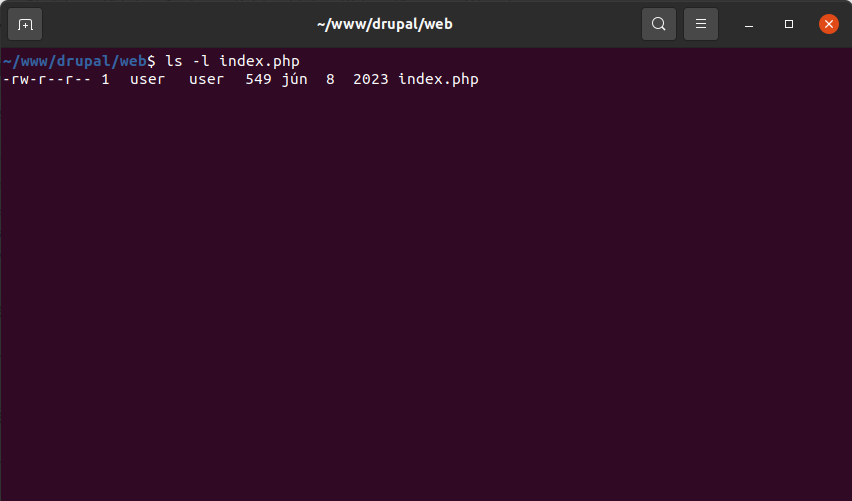
644 (or rw-r--r--)
Summary
In the Drupal ecosystem, a 403 Forbidden error means a boundary has been hit—either by design or by accident. If the error looks like Drupal's themed website layout, it's an internal permission issue (fixable by rebuilding node permissions or checking user roles). If the error is a blank, sterile server page, it's a system-level issue (fixable by adjusting file permissions or fixing .htaccess/Nginx configurations). By isolating where the gate is locked, you can quickly restore access to your site.