
Introduction
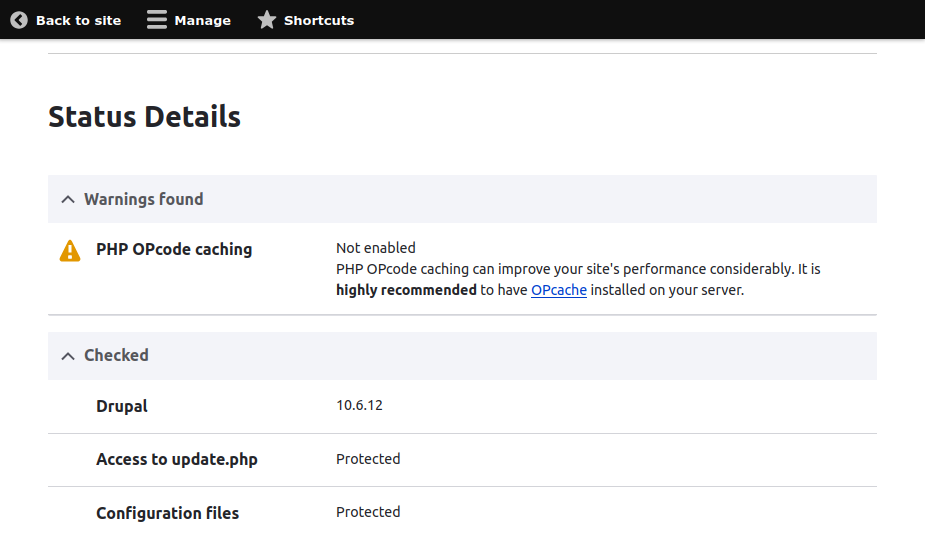
If you are running a Drupal website, you might have encountered a warning in your Status Report (/admin/reports/status) that reads:
PHP OPcode caching
Not enabled
PHP OPcode caching can improve your site's performance considerably. It is highly recommended to have OPcache installed on your server.
While this isn't a critical error that will break your website immediately, it is a significant performance bottleneck. In this guide, you will learn what OPcache is, why Drupal requires it, and how to enable it on your server to boost your site's speed.
What is PHP OPcode Caching (OPcache)?
Every time a user visits a page on your Drupal site, PHP has to read the human-readable PHP code, parse it, and compile it into bytecode (OPcodes) that the server's CPU can understand.
Because Drupal is a powerful, enterprise-grade CMS, it executes thousands of PHP files just to load a single page. Repeating this compilation process for every single page request wastes immense amounts of server CPU resources.
OPcache solves this by compiling the PHP code once and storing the resulting bytecode in the server’s shared memory. On subsequent page requests, the server skips the compilation phase entirely and executes the pre-compiled bytecode directly from memory.
Why It Matters for Drupal
- Massive Performance Boost: Pages load significantly faster because the server cuts out the compilation overhead.
- Lower CPU Usage: Your server handles traffic spikes much better, preventing 504 Gateway Timeouts.
- Drupal Recommendation: Drupal's core architecture relies heavily on caching. Without OPcache, your database and memory caches can only do so much.
How to Fix "PHP OPcode Caching Not Enabled"
To resolve this warning, you need to enable the opcache extension in your server's PHP configuration (php.ini) file. The exact steps depend on your hosting environment.
sudo apt-get install php-opcache
Connect to your server via SSH.
Install the PHP OPcache extension
(Replace php with your specific version, e.g., php8.2-opcache or php8.3-opcache).
Restart Your Web Server / PHP Servicesudo systemctl restart php-fpm (or your specific version e.g. php8.3-fpm)sudo systemctl restart apache2
Verifying the Fix
Once you have completed the steps above, clear your Drupal caches and verify the fix:
Go to Configuration > Development > Performance and click Clear all caches. Navigate back to Reports > Status report.
The "PHP OPcode caching Not enabled" warning should now be gone, replaced by a green checkmark indicating that OPcache is successfully running.
Summary
Fixing the Drupal OPcode caching warning is one of the easiest yet most impactful performance optimizations you can make. By enabling the OPcache extension via cPanel or updating your server's php.ini file, you instruct your server to store pre-compiled PHP code in its memory. This results in faster page load speeds, reduced server CPU strain, and a much smoother user experience for your Drupal visitors.