

Introduction
Upgrading or expanding a Drupal site is always an exercise in precision. Because Drupal’s ecosystem relies heavily on a complex web of dependencies, simply clicking "Install" on a new module can sometimes lead to the dreaded "white screen of death" or a broken site configuration.
Understanding module compatibility means verifying that the module’s requirements align with your version of Drupal core, your PHP version, and any other installed modules.
Whether you are a site builder looking for a quick check or a developer needing to automate these checks across a multisite environment, knowing how to verify compatibility is a vital skill.
Prerequisites
To follow this tutorial, you will need:
Ubuntu 22.04, 20.04, 18.04 or older server with a sudo non-root user.
Installed Drupal 11,10,9,
installed Composer
LAMP Stack,
How to Check Compatibility
There are two primary ways to approach this: the manual way (perfect for one-off installs) and the programmatic way (ideal for automation and custom workflows).
1. Manual Methods: The Quick Check
Before touching any code, you can usually find everything you need through the UI or the project files.
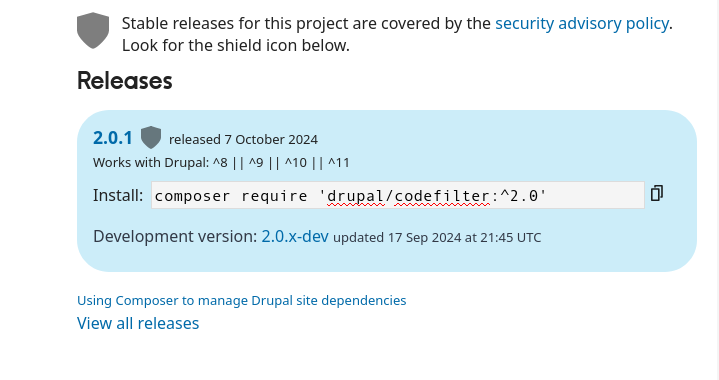
- Check the .info.yml file: Every Drupal module contains an information file. Look for the core_version_requirement line. For example, core_version_requirement:
^9 || ^10 || ^11tells you the module works with both Drupal 9 and 10 and 11 - The Reports UI: Navigate to
/admin/reports/statuson your site. If you have tried to upload a module that isn't compatible, Drupal will often flag requirement mismatches here before you attempt the installation.
2. Programmatic Methods: For Developers
In the modern Drupal ecosystem, using Composer is no longer just a recommendation; it is the industry standard for managing a site's complex architecture.
You need Composer because Drupal modules often rely on external PHP libraries that cannot be downloaded via a simple ZIP file; Composer handles these "dependencies" automatically, ensuring that all pieces of the puzzle fit together without version conflicts.
While you can technically manage a site manually (the "why-not"), doing so often leads to a "dependency hell" where manual updates break the site because a hidden library version is out of date. Utilizing a dry-run (using the --dry-run flag) is the ultimate safety net in this process. It allows you to simulate the installation or update process, letting you see exactly which files would be changed or which errors would occur before any permanent changes are written to your filesystem.
Below are examples of how to use the composer why-not and composer require --dry-run commands to verify module compatibility with your Drupal installation.
#or
composer prohibits drupal/codefilter 2.0.1
The prohibits command tells you which packages are blocking a given package from being installed. Specify a version constraint to verify whether upgrades can be performed in your project, and if not why not.
Format:composer why-not vendor/package versioncomposer prohibits vendor/package version
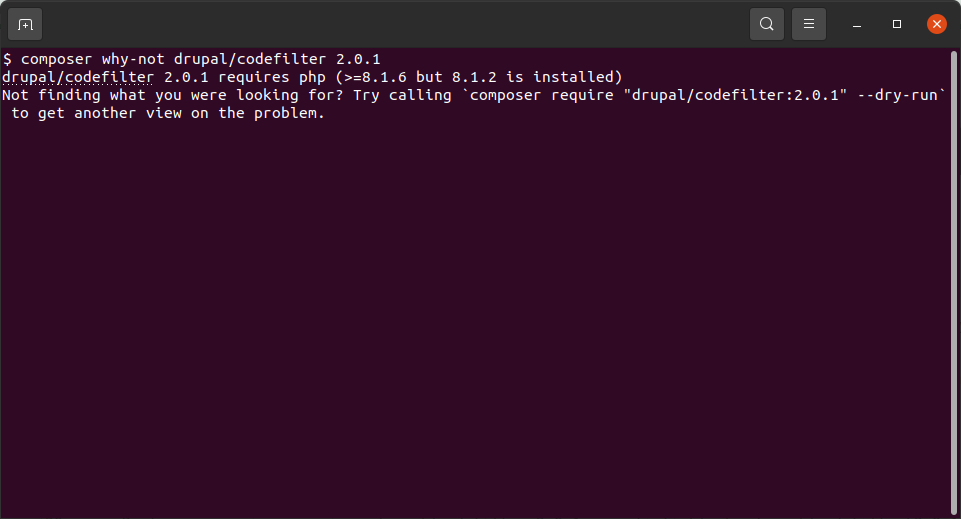
In the context of Composer and Drupal, the --dry-run flag is essentially a "simulation mode." When you append this flag to a command, Composer performs every step of the process—calculating dependencies, checking version compatibility, and identifying conflicts—but it does not actually download, delete, or modify any files on your server.
Format:composer require 'vendor/package:version' --dry-run
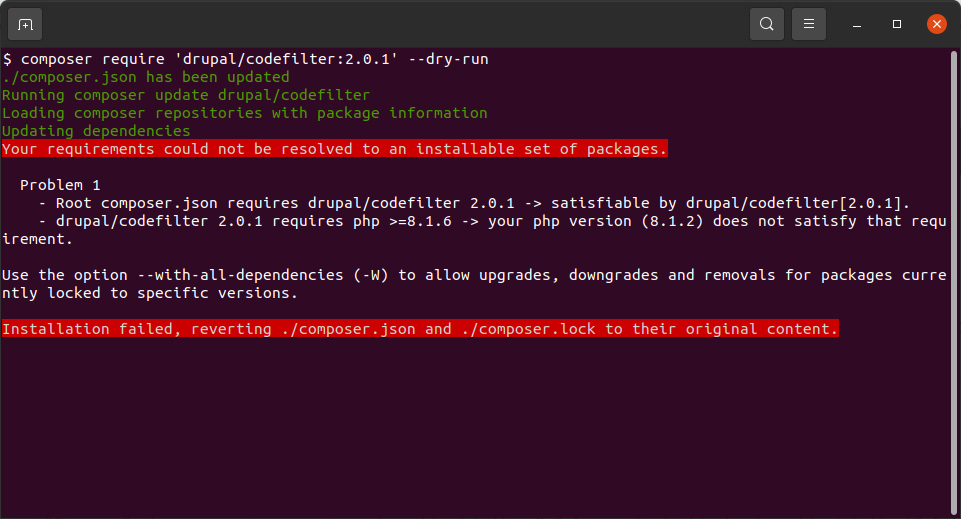
Note that you can also specify platform requirements, for example to check whether you can upgrade your server to PHP 8.0:
Summary & Key Takeaways
Verifying compatibility is the best insurance policy for your Drupal site’s uptime. While the manual approach is sufficient for most site builders, the programmatic approach offers a layer of safety for large-scale operations.
Key Takeaways:
- Always read the .info.yml: It is the source of truth for version requirements.
- Leverage Composer: Use "dry runs" or "why-not" to spot dependency conflicts before they hit your database.
- Automate when possible: Use Drupal’s built-in services to validate requirements if you are managing complex deployments.