Introduction
In the world of web security, "set it and forget it" is a dangerous philosophy. Drupal, being a powerful and flexible CMS, is a frequent target for automated bots and malicious actors seeking to exploit known vulnerabilities.
While Drupal core provides the foundation, your site’s security is heavily dependent on the contributed modules and themes you use to build functionality. This guide explains how to identify, prepare for, and install security updates to keep your site resilient against evolving threats.
Why You Need to Do Security Updates
Security updates are not optional maintenance; they are your primary defense against cyberattacks. When a vulnerability is discovered in a Drupal module or theme, a public advisory is released alongside a patch. From that moment, the flaw is known to hackers who use automated scripts to find and exploit unpatched websites. Failing to update can lead to:
- Data Breaches: Unauthorized access to sensitive user data or proprietary information.
- Site Defacement: Malicious code injected to change your site’s appearance or redirect users.
- SEO Damage: Search engines may blacklist your site if they detect malware.
- Total Loss of Control: Attackers gaining administrative access to your server or database.
The Warning Security Message
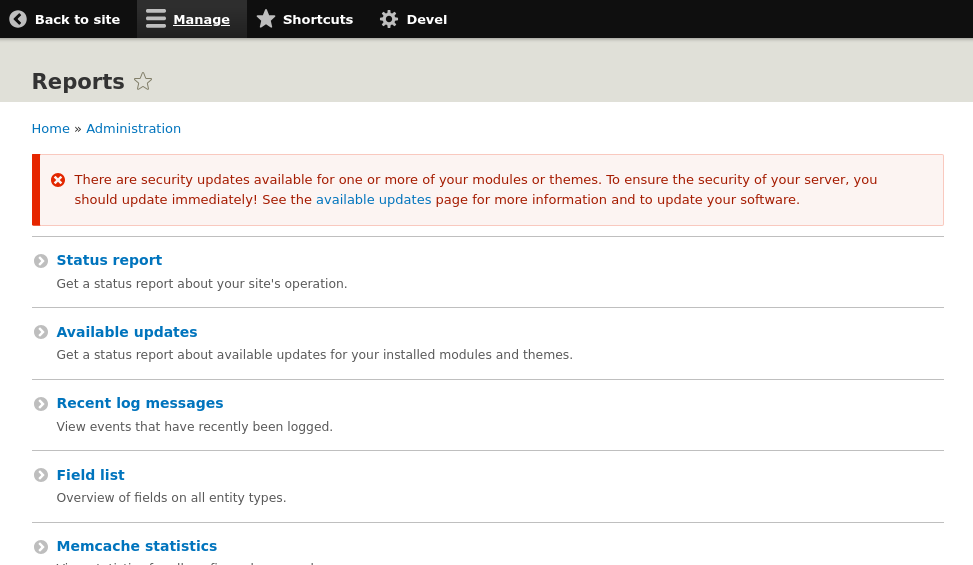
There are security updates available for one or more of your modules or themes. To ensure the security of your server, you should update immediately! See the available updates page for more information and to update your software.
composer update command - to update all modules and themes
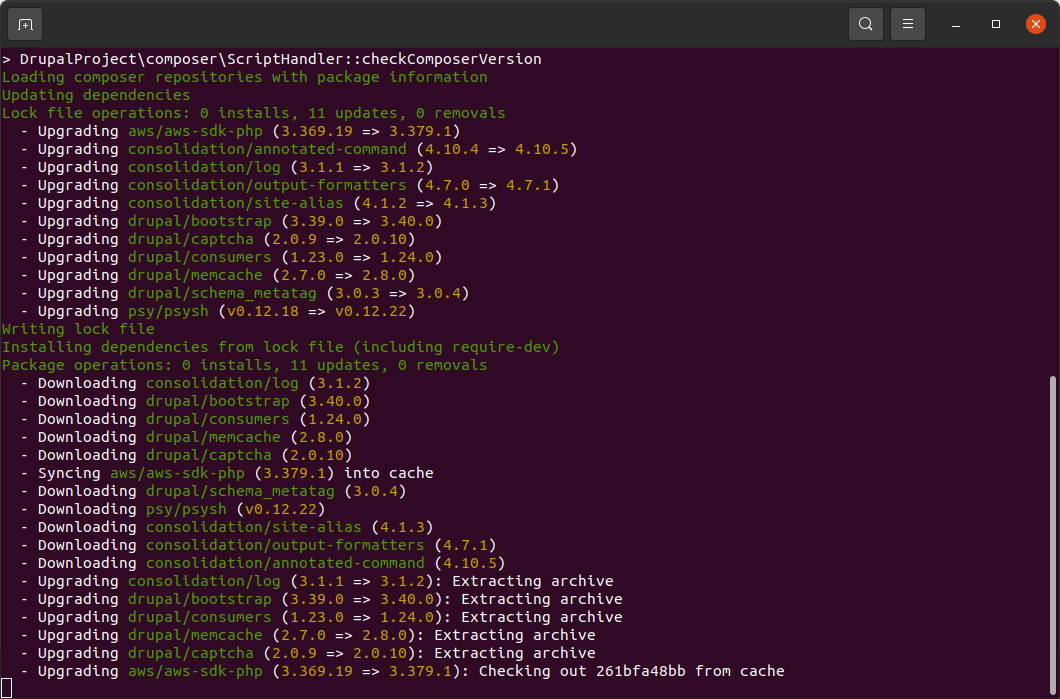
"composer update"
Instructions: How to Install Security Updates
1. Preparation and Monitoring
Check for Updates: Navigate to Reports > Available updates in your Drupal admin dashboard. Look for items highlighted in red (Security updates) or yellow (Regular updates). Read Release Notes: Visit the project page on Drupal.org to see if the security update requires manual configuration changes after installation.
Create a Backup: Always perform a full database dump and file backup before starting.
2. Update via Composer (Recommended Method)
Put Site in Maintenance Mode:
Command: drush state:set system.maintenance_mode 1
Command: drush cache:rebuild
Run the Update Command:
All modules/themes: composer update --with-all-dependencies
Check for Audit Alerts: Run composer audit to identify any security issues in non-Drupal PHP libraries.
3. Finalizing the Update
Update the Database: Apply any schema changes required by the new code.
Command: drush updatedb
Rebuild the Cache: Ensure the system recognizes the new files.
Command: drush cache:rebuild
Export Configuration: If the update added new default settings, export them to your sync directory.
Command:drush config:export
Turn Off Maintenance Mode:
Command: drush state:set system.maintenance_mode 0
4. Verification
Review Status Report: Go to Reports > Status report to confirm no errors are present.
Manual Testing: Click through your site’s core features as both an admin and an anonymous user to ensure functionality remains intact.
Summary
Keeping Drupal modules and themes updated is a multi-step process that prioritizes site stability and data integrity. The workflow involves monitoring for security advisories, creating robust backups, testing updates in a staging environment, and using modern tools like Composer and Drush to apply changes.
By following a structured update routine, you ensure that your site benefits from the latest security patches, bug fixes, and performance improvements without risking unexpected downtime.