Intro
Backing up your Drupal site is like buying insurance for your hard work. Whether you're planning a major update, migrating to a new host, or simply practicing good digital hygiene, having a manual backup ensures you can restore your site to a functional state if something goes sideways.
While modules like "Backup and Migrate" are popular, knowing how to do it manually via FTP and phpMyAdmin gives you full control and works even when your Drupal admin dashboard is inaccessible.
Why Manual Backups Matter
A Drupal site consists of two main parts: the files (core code, modules, themes, and uploads) and the database (content, configurations, and user data). To have a complete backup, you must secure both.
Note: Always put your site into "Maintenance Mode" before starting a backup to ensure no new data is written to the database during the process.
Setup:
Web server running on Ubuntu 18.04, 20.04, 22.04, LAMP stack
Drupal 8,9,10,11
Installed phpMyAdmin, FileZilla
Step 1: Export the Database via phpMyAdmin
The database is the "brain" of your Drupal site. It stores every article, comment, and configuration setting.
- Log in to your hosting control panel (e.g., cPanel or DirectAdmin) and open phpMyAdmin.
- Select your Drupal database from the sidebar on the left.
- Click the Export tab in the top menu.
- Choose the Quick export method and ensure the format is set to SQL.
- Click Go. Your browser will download a .sql file. Keep this safe; it is the literal blueprint of your website.
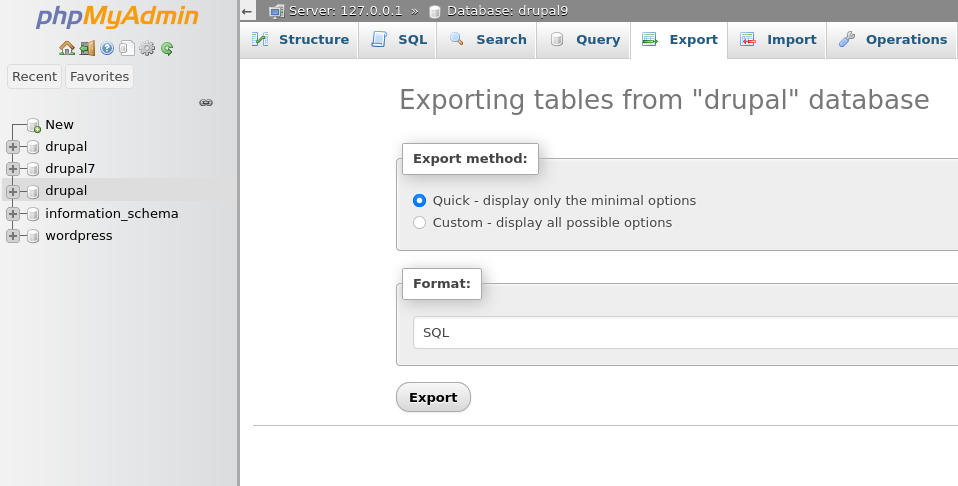
To create a backup, you simply navigate to the "Export" tab, choose the "Quick" method, and click "Go" to download your entire database as a portable .sql file.
Step 2: Download Site Files via FTP
Now you need the "body" of your site—the actual files living on the server.
- Open your FTP client (like FileZilla or Cyberduck) and connect to your server using your FTP credentials.
- Navigate to your Drupal root directory (usually public_html, www, or a folder named after your domain).
- Select all files and folders within this directory. This includes:
- /core, /modules, /themes, and /vendor
- The /sites folder (This is the most important one as it contains your settings.php and uploaded images).
- Root files like .htaccess, index.php, and composer.json.
- Right-click and select Download to save them to a dedicated folder on your local computer.
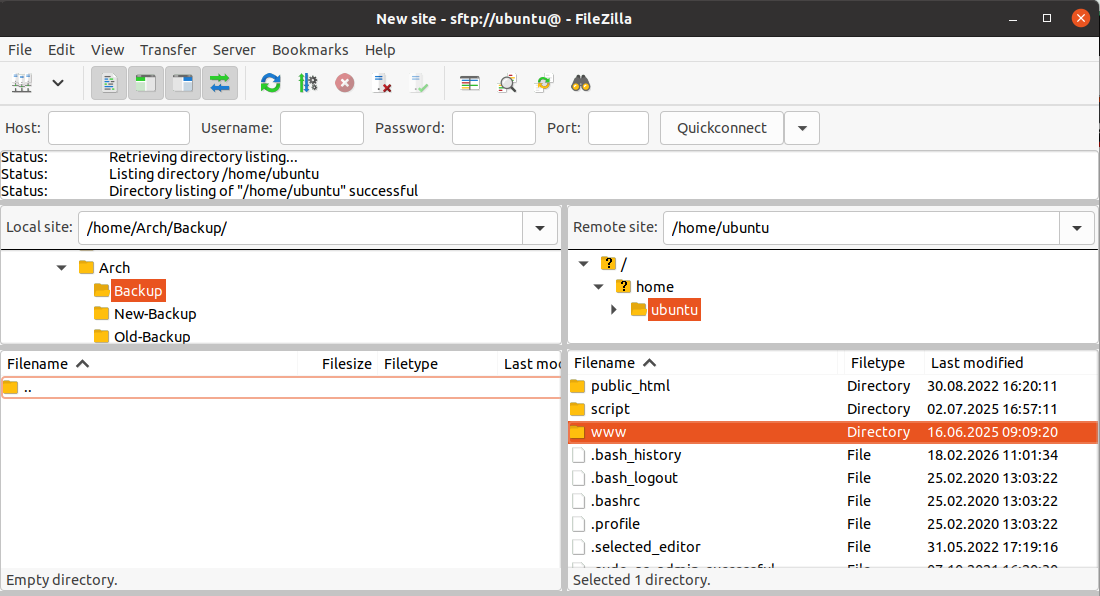
Usage: Use FileZilla to establish a secure connection between your computer and your hosting server to upload, download, and manage your Drupal website files with ease.
In this example, we are downloading the site from the /home/ubuntu/www directory and archiving it to create a secure backup.
Step 3: Verify and Organize
A backup is only good if it’s organized. Once the transfer is complete:
- Create a folder named with the current date (e.g., 2026-03-18_Drupal_Backup).
- Move both the SQL file and the FTP folder into this directory.
- Pro Tip: Compress this folder into a .zip or .tar.gz file to save space and make it easier to upload to cloud storage.
Summary Checklist
| Component | Tool Used | Resulting File |
|---|---|---|
| Database | phpMyAdmin | .sql file |
| Files | FTP Client (FileZilla) | All folders (especially /sites) |
By following these steps, you’ve captured a "snapshot" of your site. If a module update breaks your layout or a hack occurs, you can simply re-upload these files and import the database to restore your site exactly as it was.