
XML Image Sitemaps Explained: Syntax, Examples, and Best Practices
Introduction
Images play a central role in modern web content, driving organic traffic, enhancing user engagement, and appearing directly in search results via image searches. However, search engine crawlers cannot always discover every visual asset on your website — especially images loaded dynamically through JavaScript, hidden behind complex galleries, or hosted on external media servers.
An XML Image Sitemap solves this problem by providing search engines with an explicit map of the images hosted across your site. By using image-specific tags within your sitemap XML file, you ensure search engine crawlers discover, understand, and index your visual content efficiently.
What Is an XML Image Sitemap?
An XML Image Sitemap is either a standalone XML file or an extension added to your standard XML sitemap using the official Image Sitemaps namespace xmlns:image="[http://www.google.com/schemas/sitemap-image/1.1] (http://www.google.com/schemas/sitemap-image/1.1)".
It explicitly lists the image URLs associated with specific webpage URLs on your website. Rather than relying solely on crawlers finding images inside HTML <img> elements during standard web rendering, image sitemaps notify search engines about visual assets directly.
Key Rules and Specifications:
- Namespace: Must include the image namespace header:
[http://www.google.com/schemas/sitemap-image/1.1](http://www.google.com/schemas/sitemap-image/1.1). - Limits: A single page
<url>block can list up to 1,000 images<image:image>tags. - Cross-Domain Images / CDNs: Image URLs
<image:loc>can be hosted on a different domain or Content Delivery Network (CDN), provided both the main website domain and the CDN domain are verified in Google Search Console.
How to Validate Your XML Image Sitemap
XML Specification:
Image Sitemaps XML schemas
For elements specific to Images:
https://www.google.com/schemas/sitemap-image/1.1/sitemap-image.xsd
For core Sitemap elements:
https://www.sitemaps.org/schemas/sitemap/0.9/sitemap.xsd
<urlset xmlns="http://www.sitemaps.org/schemas/sitemap/0.9"
xmlns:image="http://www.google.com/schemas/sitemap-image/1.1">
<!-- Page 1: Contains two images -->
<url>
<loc>https://example.com/sample1.html</loc>
<image:image>
<image:loc>https://example.com/image.jpg</image:loc>
</image:image>
<image:image>
<image:loc>https://example.com/photo.jpg</image:loc>
</image:image>
</url>
<!-- Page 2: Contains one image -->
<url>
<loc>https://example.com/sample2.html</loc>
<image:image>
<image:loc>https://example.com/picture.jpg</image:loc>
</image:image>
</url>
</urlset>
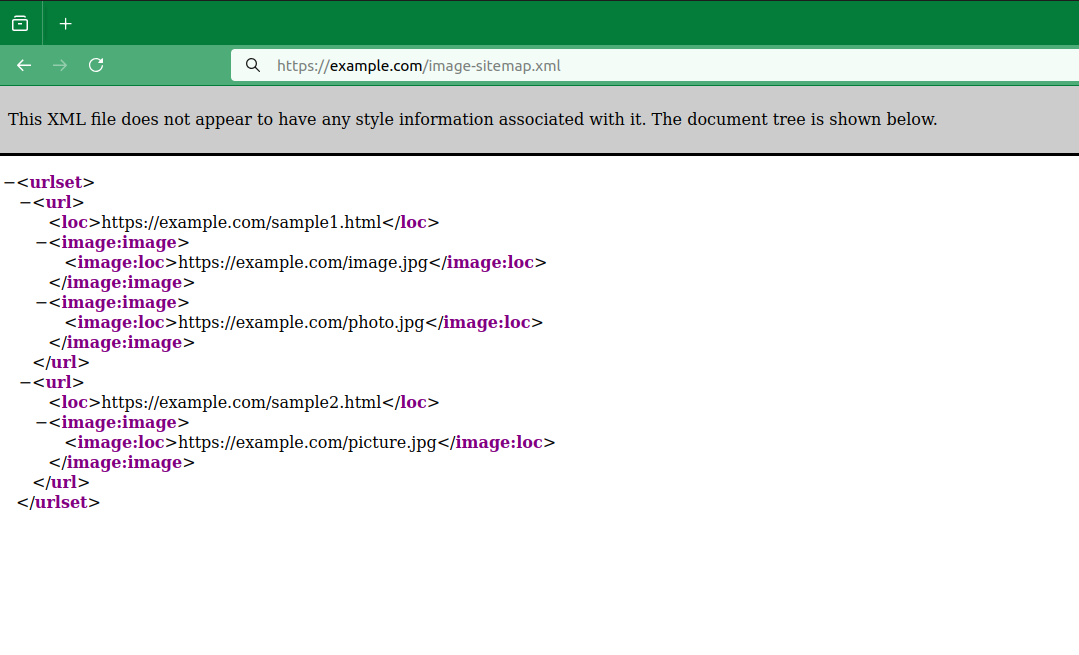
Below is a complete XML sitemap snippet featuring the image extension. This example showcases two page URLs (<loc>): the first contains two images, and the second contains one.
Breakdown of the Required Tags
<urlset>Required: The parent tag enclosing the entire sitemap file, specifying the standard sitemap protocol and the image namespace.<url>Required: Defines a specific page URL on your website.<loc>Required: The exact URL of the webpage where the images are embedded.<image:image>Required: Wraps all information about a single image.<image:loc>Required: The exact absolute URL of the image file (e.g.,.jpg,.png,.webp).
Note on Deprecated Tags: Previously, image sitemaps supported optional tags such as <image:caption>, <image:title>, <image:geo_location>, and <image:license>. Google has officially deprecated these tags. Search engines now rely directly on page context, standard HTML attributes (like alt text and image titles), and structured data instead.
Sitemap: https://example.com/sitemap-images.xml
# OR
Sitemap: https://example.com/sitemap-pages.xml
Sitemap: https://example.com/sitemap-images.xml
Add the absolute URL of your image sitemap anywhere in your robots.txt file (conventionally placed at the top or bottom of the file).
Important Rules to Remember
- Absolute URLs Only: Always use the full, absolute URL including the protocol (e.g.,
[https://example.com/sitemap-images.xml](https://example.com/sitemap-images.xml), not /sitemap-images.xml). - Multiple Sitemaps: If you have separate sitemaps (e.g., one for regular pages, one for images, one for news), you can list multiple Sitemap: lines:
Sitemap: https://example.com/sitemap-pages.xml
Sitemap: https://example.com/sitemap-images.xml - Allow Crawling: Make sure your
robots.txtdoes not disallow the image directory or the sitemap itself. If Googlebot-Image or Googlebot is blocked from crawling the directory where your images live (e.g.,Disallow: /images/), search engines will not index those images even if they are listed in your sitemap.
Summary & Key Takeaways
- Ensures Discovery: Image sitemaps help search engines locate hard-to-find visual content, especially images rendered via JavaScript.
- Flexible Implementation: You don't need a separate sitemap file; adding image tags to your existing XML sitemap is completely supported.
- Focus on Required Tags: Stick to the <image:image> container tag and
<image:loc>URL tag. Deprecated tags like <image:caption> or<image:title>are no longer processed. - CDN Compatible: CDN-hosted images are supported as long as your CDN domain is verified in your search engine webmaster tools (e.g., Google Search Console).
- Respect Crawl Rules: Ensure your robots.txt file permits crawlers to access both the webpage URLs and the image asset URLs listed in your sitemap.