

Introduction
Learn how to use the Linux grep command like a professional developer. This complete guide covers syntax, regular expressions, practical examples, advanced usage, and the most useful grep commands.
Whether you're debugging an application, searching through thousands of log files, or finding specific code across an entire project, the grep command is one of the most valuable tools every developer should master.
grep is a powerful command-line utility available on Linux, macOS, and many Unix-like operating systems. It allows developers to quickly search files for specific text patterns, making it indispensable for software development, system administration, DevOps, and troubleshooting.
In this guide, you'll learn what the grep command is, how it works, practical examples you can use daily, and a collection of useful commands that will help improve your productivity.
What Is the GREP Command?
grep stands for Global Regular Expression Print. It searches one or more files for lines matching a specified pattern and prints the matching results.
Basic syntax:
grep [OPTIONS] PATTERN [FILE...]
Where:OPTIONS modify the search behavior.PATTERN is the text or regular expression to search for.FILE is one or more files to search.
For example:grep "error" application.log
This command prints every line containing the word error from application.log.
Why Developers Use GREP
Developers rely on grep for many everyday tasks, including:
- Finding functions or classes in large codebases
- Searching logs for errors or warnings
- Filtering command output
- Debugging applications
- Locating configuration values
- Auditing source code
- Searching recursively through project directories
- Working with shell scripts and automation
Because grep is lightweight and extremely fast, it often outperforms opening files manually in an editor.
Best Practices
To get the most out of grep, follow these recommendations:
- Use -r when searching project directories.
- Add -n to quickly locate matching lines.
- Combine grep with tools like find, sort, awk, and sed.
- Learn basic regular expressions to perform advanced searches.
- Use -i when case sensitivity isn't important.
- Prefer grep -rn when searching source code to include both recursion and line numbers.
# Search for the word "database":
grep "database" server.log
# Use -i to perform a case-insensitive search.
grep -i "error" server.log
# Search Multiple Patterns
grep -E "error|warning|critical" server.log
# Show Line Numbers
grep -n "main" server.log
# Count Matches
# Instead of printing matches, count them.
grep -c "ERROR" server.log
# Invert the Search
# Display lines that do not contain the pattern.
grep -v "^#" server.log
Basic GREP Examples, Search for a Word
grep "^import" app.py
# Match Lines Ending with a Word
grep "localhost$" config.txt
# Matches every line containing at least one digit.
grep "[0-9]" users.txt
# Match Email Addresses
# This uses Extended Regular Expressions with the -E option.
grep -E "[A-Za-z0-9._%+-]+@[A-Za-z0-9.-]+\.[A-Za-z]{2,}" contacts.txt
One of GREP's biggest strengths is support for regular expressions.
ps aux | grep nginx
# Find Listening Ports
netstat -tulnp | grep 8080
# Filter Docker Containers
docker ps | grep redis
# Search Git History
git log | grep "feature"
# Find Failed Requests
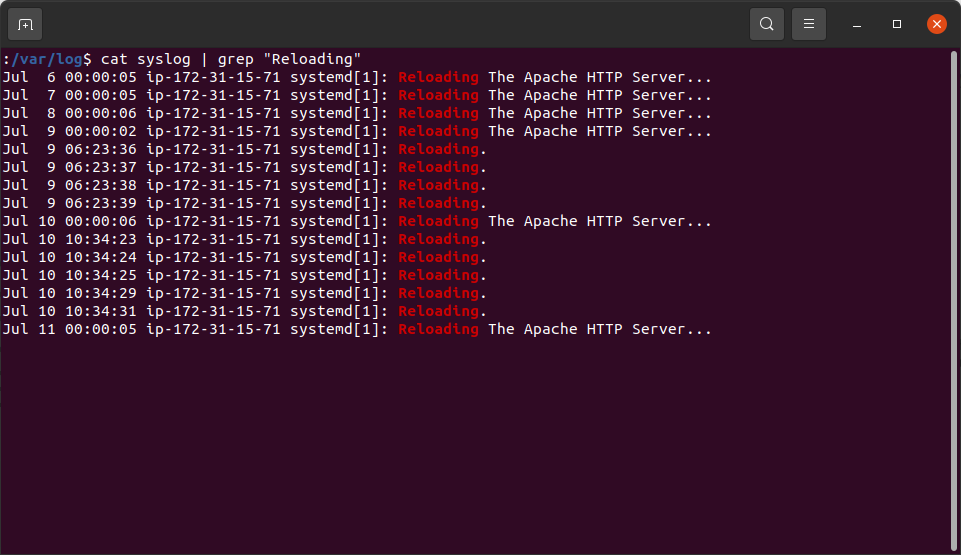
cat access.log | grep "500"
grep becomes even more powerful when combined with pipes.
Useful GREP Options
Option Description
-i Ignore case
-r Recursive search
-n Show line numbers
-c Count matches
-v Invert search
-l Show only filenames
-w Match whole words only
-x Match entire lines
-o Print only matching text
-E Enable extended regular expressions
-A N Show N lines after a match
-B N Show N lines before a match
-C N Show N lines before and after a match
Summary
The grep command remains one of the most essential command-line tools for developers. Whether you're searching source code, analyzing logs, debugging applications, or filtering command output, mastering grep can significantly improve your productivity.
By understanding its core syntax, learning common options, and practicing with regular expressions, you'll be able to navigate large codebases and troubleshoot issues much more efficiently. Combined with other Unix tools, grep becomes an indispensable part of every developer's workflow.
If you're working regularly in Linux, macOS, or within Docker containers and cloud environments, investing time in learning grep is well worth the effort.