
Introduction
Whether you are a seasoned sysadmin or a casual Ubuntu user, few things are as frustrating as a "Low Disk Space" warning popping up in the middle of a task. In the Linux world, storage can fill up quickly due to cached packages, log files, or hidden backups. Understanding exactly where your gigabytes have gone is the first step toward reclaiming your system’s performance.
Ubuntu offers a powerful variety of tools to help you investigate your storage, ranging from simple built-in commands to sophisticated graphical analyzers. You don't need to be a terminal wizard to get answers; whether you prefer the speed of the Command Line Interface (CLI) or the intuitive feel of a Graphical User Interface (GUI), there is a solution that fits your workflow.
In this guide, we will walk through the most effective methods for analyzing disk usage. We’ll cover the "quick-look" commands for an instant overview, as well as deep-dive tools that visualize your data, making it easy to spot the massive folders hiding in your home directory. By the end of this article, you’ll have a clear map of your files and the knowledge to keep your Ubuntu system lean and efficient.
Comparison of Popular Tools
Here is a breakdown of the most popular tools for analyzing disk space usage.
| Tool | Type | Best For |
|---|---|---|
| df | CLI | Quick overview of all partitions |
| du | CLI | Checking the size of specific directories |
| ncdu | CLI | Interactive, visual navigation in the terminal |
| Baobab | GUI | The "Disk Usage Analyzer" (default in Ubuntu) |
du - Command
The du (Disk Usage) command is one of the most powerful tools in a Linux user's arsenal, but its raw output can be overwhelming. To make it truly "usable," you need to combine it with specific flags that filter out the noise.
Here are the most practical ways to use du to find exactly what is eating your storage:
#or
du -sh /folder
Usage: CLI
By default, du outputs sizes in bytes, which is hard to read. Always include the -h flag to see sizes in KB, MB, or GB.
Best for: Getting the total size of your current folder without listing every subfolder.
Usage: CLI
Running du on a large directory can scroll for minutes. Use the --max-depth flag to limit how deep the command looks.
Usage: CLI
Combine du with sort to find the real space-hogs.
Usage: CLI
Sometimes you want to ignore certain things, like a massive .git folder or your backup drive.
Best for: Finding "invisible" bloat while ignoring large media files you already know about.
df - Command
While du is for files and folders, df (Disk Free) is for the big picture. It looks at your entire filesystem to show you which disks or partitions are reaching their limits.
Here are the most useful ways to use df for system monitoring:
#or
df -h /
Usage: CLI
Without flags, df shows sizes in 1K blocks, which is impossible to read quickly. Adding -h converts everything to GB and MB.
Best for: A quick scan to see which drive is at 90% or 100% capacity.
Usage: CLI
In Ubuntu, the df command is often cluttered with snap packages listed as /dev/loop. You can filter these out to see only physical drives.
Best for: Getting a clean, readable list of your actual hard drives and SSDs.
Baonab - app/command
What is Baobab?
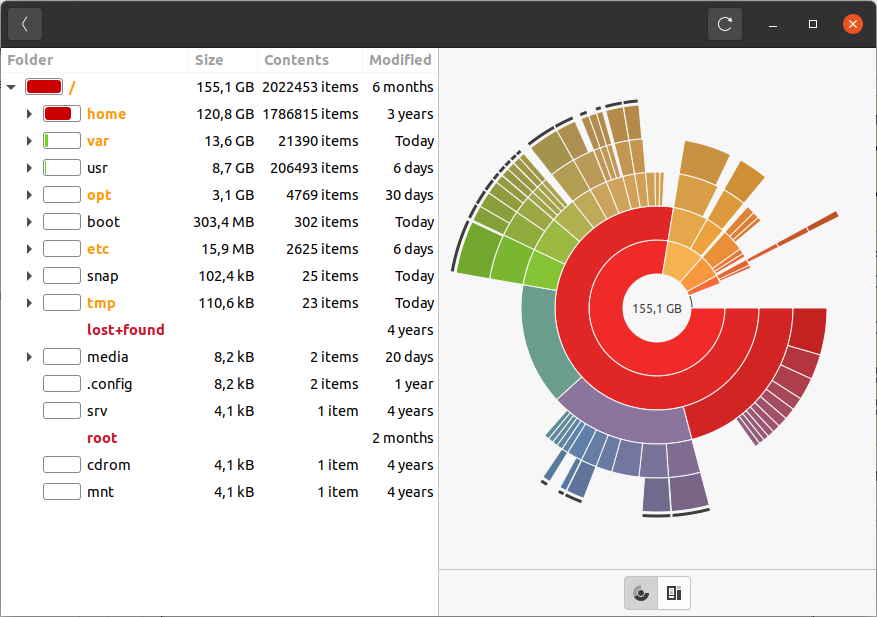
Baobab is a graphical tool that provides a visual representation of your storage. Instead of reading lines of text, it generates a Sunburst Chart or a Treemap, making it immediately obvious which specific folder (like a forgotten "Downloads" folder or a massive Steam library) is eating your disk space.
ncdu - command, the ideal tool for analyzing disk space usage.
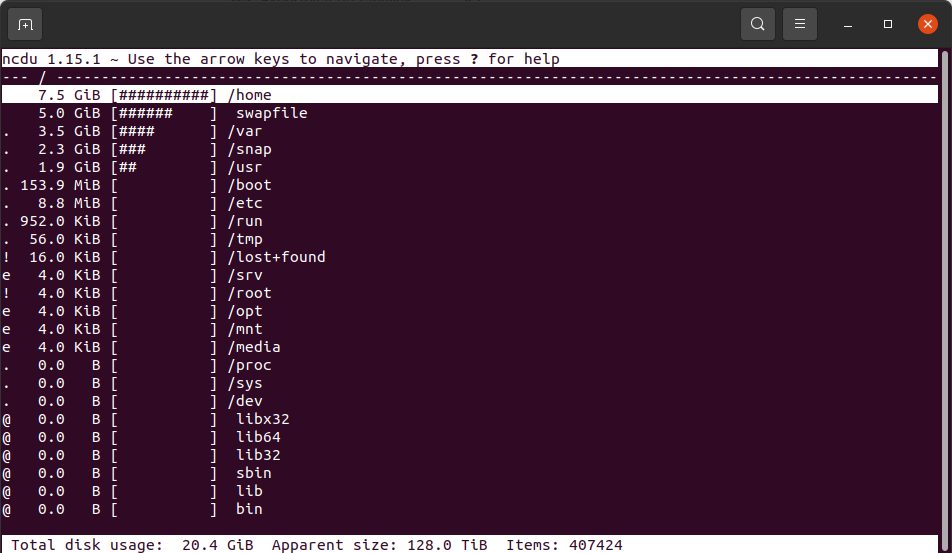
If the standard du command is too messy and Baobab is too "heavy," ncdu (NCurses Disk Usage) is the perfect middle ground. It is an interactive, terminal-based analyzer that gives you a visual UI without leaving the command line.
#or
ncdu /folder
ncdu is an interactive, terminal-based analyzer that combines the speed of the command line with a visual, easy-to-navigate interface for identifying and deleting space-consuming files.
Conclusion
Managing disk space doesn't have to be a guessing game; with the right mix of terminal commands and graphical tools, you can easily transform a "Low Disk Space" warning into a clean, optimized system. Whether you prefer the raw speed of df and du or the intuitive visual maps provided by Baobab, the key is to stay proactive. By regularly auditing your storage and identifying large, unnecessary files early on, you ensure that your Ubuntu machine remains fast, responsive, and ready for whatever project comes next.