
Introduction
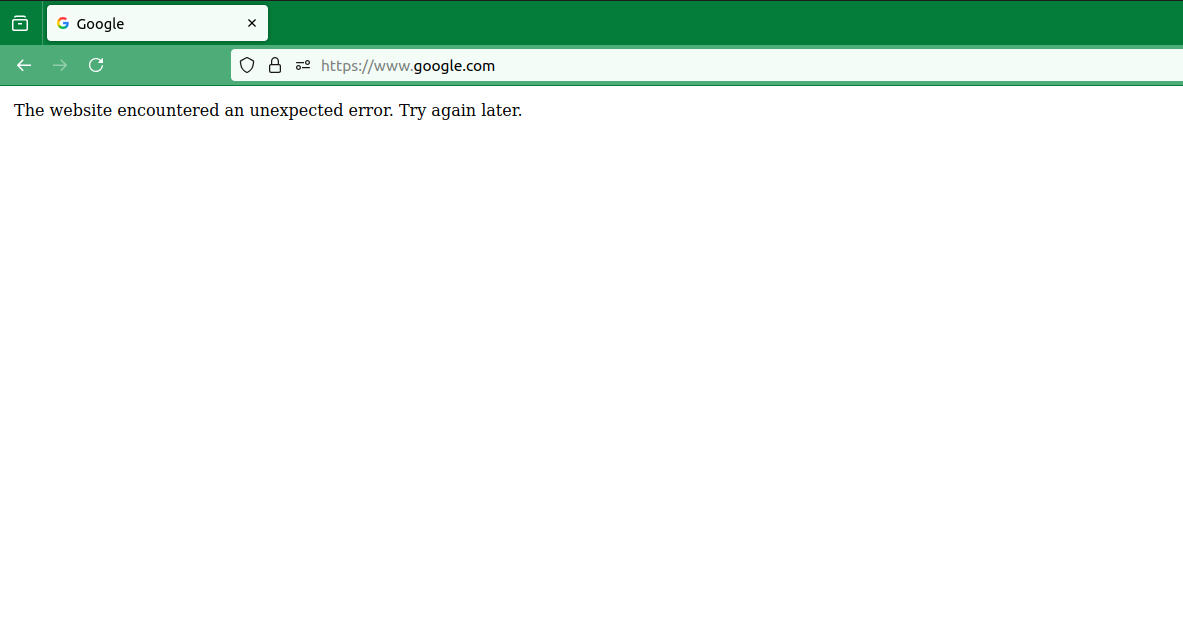
Few things are more frustrating than trying to access a website and being greeted with a vague message like:
The website encountered an unexpected error. Try again later.
This error doesn’t tell you much—and that’s the problem. It’s a generic message typically shown when something goes wrong on the server side. However, while the issue is often outside your control, there are still several things you can try as a visitor to resolve or work around it.
This guide walks you through what this error means, why it happens, and practical steps you can take to fix it.
What Does This Error Mean?
This message usually indicates that the website’s server encountered a problem it couldn’t handle properly. Instead of showing a detailed technical error, the site displays this generic message to avoid exposing sensitive information.
Common causes include:
- Temporary server outages or overload
- Bugs in the website’s code
- Database connection failures
- Misconfigured plugins or updates
- Maintenance or deployment issues
Even though it’s mostly a server-side problem, sometimes your browser, device, or network can contribute to the issue.
What You Can Do as a Visitor
1. Refresh the Page
Start simple:
Press F5 or click the refresh button
Try a hard refresh:
Windows: Ctrl + F5
Mac: Cmd + Shift + R
This clears temporary glitches and reloads the page from scratch.
2. Check if the Website Is Down for Everyone
The problem might not be on your side.
Use tools like:
“Down for everyone or just me”
Online uptime checkers
If the site is down globally, your best option is to wait.
3. Clear Your Browser Cache and Cookies
Corrupted or outdated cache files can cause loading issues.
How to do it:
Go to browser settings
Find Privacy & Security
Clear Cache and Cookies
Then restart your browser and try again.
4. Try a Different Browser
Sometimes browser-specific issues cause errors.
Switch from Chrome → Firefox, Edge, or Safari
If the site works elsewhere, your original browser likely has a configuration issue
5. Disable Browser Extensions
Extensions (especially ad blockers, privacy tools, or script blockers) can interfere with websites.
Try this:
Open the site in Incognito/Private mode
Or disable extensions temporarily
If the site works, re-enable extensions one by one to find the culprit.
6. Check Your Internet Connection
An unstable or filtered connection can cause unexpected behavior.
Restart your router
Switch networks (Wi-Fi → mobile data)
Turn off VPN or proxy services if enabled
7. Try Accessing the Website Later
If the issue is server-related (which it often is), waiting is sometimes the only solution.
Try again after a few minutes or hours
Check the website’s social media for outage updates
8. Use Another Device
Testing on another device helps isolate the problem.
If it works on your phone but not your computer, the issue is likely local
If it fails everywhere, it’s probably the website itself
9. Contact the Website Owner
If the issue persists and the website is important:
Look for a Contact Us page
Report the error with details:
What page you visited
What you were trying to do
Screenshot of the error
This helps developers fix the issue faster.
Summary
The “The website encountered an unexpected error. Try again later.” message is a generic server-side error that can stem from various technical problems. While you don’t control the website, you can still take steps to troubleshoot your side.
Key takeaways:
- Start with simple fixes like refreshing the page
- Clear cache and try different browsers
- Disable extensions and check your connection
- Confirm if the site is down globally
- If nothing works, wait or contact the site owner
In most cases, the issue resolves itself once the website fixes its backend problem.