
Introduction
Moving a website to a new server can feel like a high-stakes operation where one wrong move results in broken links or missing assets.
While there are plenty of GUI-based FTP clients available, professional developers almost universally rely on rsync for its speed, reliability, and precision. This guide will show you how to harness that power to ensure your migration is seamless and error-free.
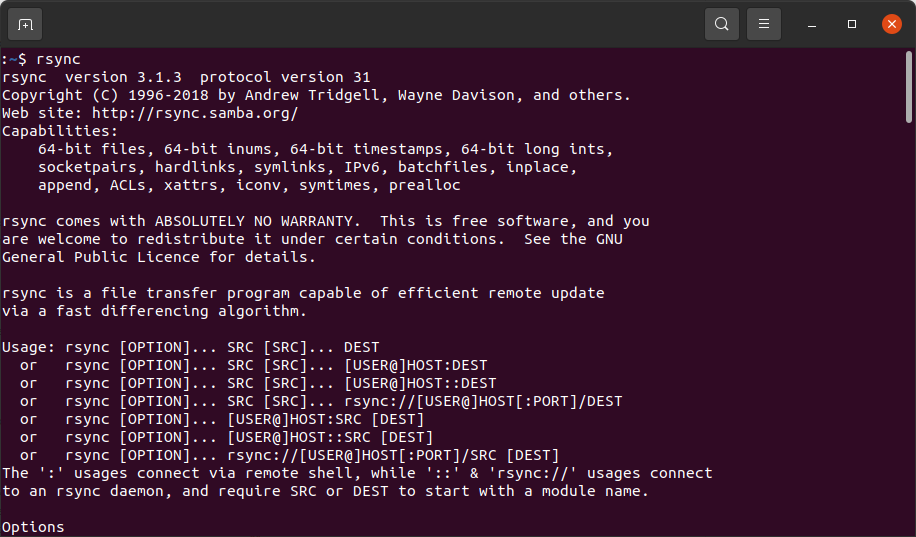
Rsync - is a file transfer program capable of efficient remote update via a fast differencing algorithm.
It stands out because it uses a delta-transfer algorithm, which reduces network data by only sending the portions of files that have changed rather than the entire file.
In a typical web development workflow, rsync is most commonly used to push local code updates to a live production environment with a single command. It is also an essential tool for creating incremental backups, allowing you to mirror your entire site directory to a backup server without wasting bandwidth. Furthermore, it excels at migrating massive media libraries or databases between servers, as it can resume interrupted transfers and preserve file permissions automatically.
rsync -avz /src/ /dest/
#Transfer to Remote Server
rsync -avz /local/path/ user@remote_ip:/remote/path/
#Mirror (Delete old files)
rsync -avz --delete /src/ /dest/
#Dry Run (Testing)
rsync -avzn /src/ /dest/
#Resume Interrupted Copy
rsync -avz --partial --progress /src/ /dest/
Common Rsync Use Cases
- -a (Archive): This is the "magic" flag. It preserves symbols links, file permissions, and timestamps. It is essential for ensuring your website still works after it lands on the new server.
- -v (Verbose): This allows you to see exactly which files are being transferred in real-time.
- -z (Compress): This compresses the file data during the transfer, which is a lifesaver when moving large site assets over a slow connection.
- -n (Dry Run): When paired with -v, this shows you what would happen without actually moving any files. Always do this first.
- --delete: This makes the destination an exact mirror of the source. If a file exists on the server but not in your local folder, rsync will delete it from the server.
rsync -avz -e "ssh -p 22 -i private.key" /local/site/ user@remote_host:/home/site/
#download files
rsync -avz -e "ssh -p 22 -i private.key" user@remote_host:/home/site/ /local/site/
To tell rsync to use a specific port and a private key, you use the -e (rsh) flag to pass a custom SSH command string.
Use the following template to connect via a custom port and key.
- -e "ssh ...": This tells rsync to use "SSH" as the remote shell. Everything inside the quotes is passed directly to the SSH command.
- -p 22: Replace 22 with your server's specific port number (e.g., 2222).
- -i private_key: This points to your identity file (usually named id_rsa or id_ed25519). Ensure the permissions on this file are set to 600 (chmod 600 keyfile), or SSH will reject it for being too "open."
rsync -avz --exclude '*.log' --exclude '.DS_Store' /src/ /dest/
rsync -avz --exclude 'node_modules' --exclude '.git' /src/ /dest/
rsync -avz --exclude-from='rsync-exclude.txt' /src/ /dest/
#The "Dry Run" Safety Net, "-n"
rsync -avzn --exclude 'node_modules' /src/ /dest/
When transferring a website, you often have "heavy" or "hidden" directories that don't belong on a live server—like your .git history, local configuration files, or the massive node_modules folder. Transferring these wastes bandwidth and can even pose a security risk.
To skip these, you use the --exclude flag.
rsync -av -e "ssh -i private-key.pem" user@myremotehost.com:/home/ubuntu/www ./local-site-folder
# Upload/sync the site.
rsync -av -e "ssh -i private-key.pem" ./local-site-folder user@myremotehost.com:/home/ubuntu/www
Parameters:
-a (Archive)
-v (Verbose)
-e (SSH)
The difference: folder or folder/
folder (no slash) copies the directory itself into the destination, whereas folder/ (with a slash) copies only the contents of that directory into the destination.
Beyond the basic flags, rsync has several powerful parameters that can save you time, protect your data, and optimize your bandwidth.
Here are the most useful parameters for web developers and system administrators:
The "Efficiency" Parameters
| Parameter | Function | Why it’s useful |
|---|---|---|
--progress | Displays a progress bar during transfer. | Great for tracking large media folder uploads. |
-P | Equivalent to --partial --progress. | If your connection drops, it keeps the partially transferred file so you can resume later. |
--bwlimit=KBPS | Limits the I/O bandwidth used. | Prevents rsync from "clogging" your internet connection if others are using the network. |
--compress-level=NUM | Explicitly sets compression level (1–9). | Use a higher number for slow connections to maximize data shrinking. |
The "Safety & Cleanup" Parameters
| Parameter | Function | Why it’s useful |
|---|---|---|
--dry-run (-n) | Simulates the command without moving files. | Mandatory when using the --delete flag to avoid accidental data loss. |
--delete | Deletes files in destination that aren't in source. | Keeps your server clean and perfectly mirrored to your local environment. |
--backup | Backs up files that would be deleted or overwritten. | Adds a safety net; if a file is updated, the old version is renamed rather than lost. |
--exclude | Skips specific files or folders. | Prevents uploading junk like .DS_Store, .git, or node_modules. |
The "Advanced Control" Parameters
| Parameter | Function | Why it’s useful |
|---|---|---|
--checksum (-c) | Forces file comparison via hash instead of size/time. | Slower but much more accurate for sensitive data verification. |
--chmod | Changes file permissions on the destination during transfer. | Ensures web server ownership (e.g., www-data) is correct immediately. |
--existing | Only updates files that already exist on the destination. | Useful for updating configuration files without adding new development files. |
--remove-source-files | Deletes source files after a successful transfer. | Effectively "moves" the files instead of copying them to save local space. |
Summary
Moving a website doesn't have to be a manual slog. This guide breaks down how to use rsync, the industry-standard tool for fast, secure, and efficient file synchronization.
You will learn how to move entire site directories while preserving critical file permissions and saving bandwidth by only transferring data that has changed. From basic syntax to advanced flags like --dry-run for safety, this tutorial provides a foolproof roadmap for migrating your web assets between servers with total confidence.