
Introduction
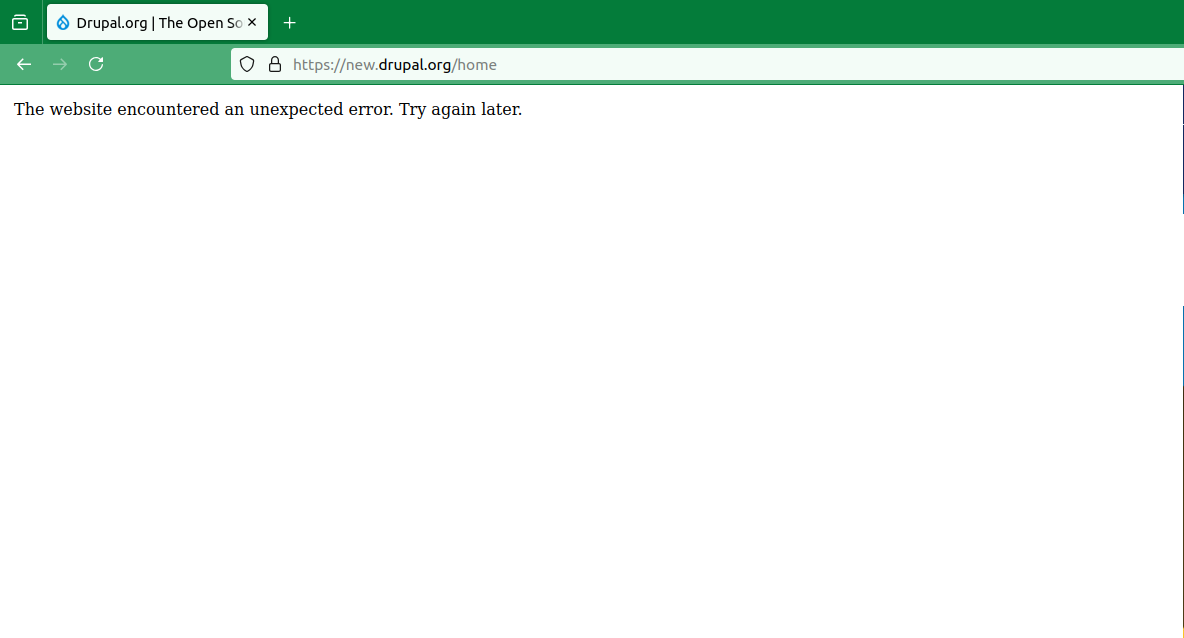
If you are a Drupal site administrator, developer or site owner, there is perhaps no message more frustrating than the dreaded:
"The website encountered an unexpected error. Please try again later."
This is Drupal’s generic "fail-safe" screen. It prevents sensitive system information from being displayed to visitors when the site crashes. However, because it is so vague, it leaves developers wondering: Is it a database issue, a PHP conflict, or a missing module?
Follow this guide to unmask the real error and get your site back online.
Step 1: Reveal the Real Error Message
You cannot fix what you cannot see. By default, Drupal hides the technical details of the crash. You need to force Drupal to show you the "WSOD" (White Screen of Death) logs.
Access your server: Connect to your site’s file directory via SSH or SFTP.
Edit settings.php: Navigate to sites/default/settings.php
Enable Error Reporting: Add the following lines to the very bottom of the file:$config['system.logging']['error_level'] = 'verbose';
Clear Caches: Refresh your site. The generic error should now be replaced by a specific PHP stack trace or database exception.
Note: Once you identify and fix the issue, be sure to remove this line to keep your site secure.
$config['system.logging']['error_level'] = 'verbose';
Enable Error Reporting: Add the following lines to the very bottom of the file: settings.php
It's required to Clear Drupal Caches and Refresh your site.drush cr
You can enable debugging with Drush as well. See the four possible config variable names:
None - hide
Errors and warnings - some
All messages - all
All messages, with backtrace information - verbose
ini_set('display_errors', TRUE);
ini_set('display_startup_errors', TRUE);
For local Drupal development, you can also enable error reporting, display errors and display startup error to help you further debugging and fixing major runtime errors.
Step 2: Common Culprits and How to Fix Them
Once you see the detailed error, it usually falls into one of these three categories:
Corrupt Cache
The Sign: The error appears randomly after a module update or a configuration change.
The Fix: Manually clear the database cache. Since you can't access the admin UI, use one of these: Rundrush crin your terminal. To fix this error.Incompatible Modules or Themes, Code Compatibility
Happens when a newly installed module, a core update, or a custom theme contains syntax errors or is incompatible with the current PHP version.
File Permissions
Arises when Drupal cannot write to the files directory or access the private folder, preventing the system from generating necessary temporary assets.
Database Connectivity
Caused by incorrect credentials in
settings.php, a crashed database service, or the database user lacking necessary permissions (e.g.,"SELECT"or"UPDATE").PHP Resources
Occurs when the server exceeds its allocated memory limit or execution time, often triggered by heavy processes like image styling or complex views.
Summary Checklist
- Switch to verbose logging in
settings.php. - Identify the specific error from the stack trace.
- Check server/database logs if the screen remains empty.
- Disable problematic modules or revert recent changes.
- Clear all caches to ensure clean state.
By revealing the underlying error, you transform a generic, panic-inducing message into a specific task that you can solve. If the error still persists after these steps, it is highly likely that a core file has been corrupted or your PHP version is incompatible with your current Drupal installation.
Summary
To fix the generic "unexpected error" in Drupal, you must first uncover the underlying issue by checking your server’s PHP error logs or enabling verbose error reporting in your settings.php file.
Once the specific cause is revealed, the solution typically involves increasing the PHP memory limit, clearing the site cache via Drush or the database, or disabling a recently updated module that is causing a compatibility conflict.
After identifying the culprit—whether it is a database credential mismatch or a faulty theme—and restoring site functionality, ensure you disable public-facing error messages to maintain server security.