
Keywords: "Reset WordPress Password", "WordPress Password Recovery", "Locked Out of WordPress".
Locked Out of WordPress? 4 Fast Ways to Reset Your Password
Few things trigger instant panic quite like typing in your administrative password, clicking Log In, and seeing the dreaded red error banner: "The password you entered for the username is incorrect."
Whether you are running a simple personal blog or a high-traffic e-commerce store, losing administrator access disrupts your workflow, halts content updates, and poses potential operational risks. The good news is that WordPress stores password credentials in a modular way — meaning if the standard login screen fails, you have several reliable backdoors to regain control.
When Does This Happen? Common Lockout Scenarios
Being locked out isn't always a simple case of forgotten credentials. Understanding why it happened helps choose the fastest recovery path:
- Lost or Misconfigured Email Services: You click "Lost your password?", but the automated reset email never arrives because your web server isn't properly configured to send outgoing emails (wp_mail() failure) or the email landed in spam.
- Security & Plugin Conflicts: A security plugin (like Wordfence or iThemes) locked your IP address after too many failed attempts, or a plugin conflict disabled the standard login page.
- Hacked or Compromised Accounts: A malicious actor gained access and altered your admin user account credentials and recovery email.
- Inherited Sites: Taking over a website for a client or company where the previous developer did not hand over login credentials or associated recovery emails.
- Database Migration Errors: Moving a site to a new domain or host without properly updating or syncing user tables.
Quick Essentials: How WordPress Handles Passwords
Before attempting a reset, it helps to understand the underlying mechanics:
Storage Location — User credentials live in your site's database, specifically inside the wp_users table.
Encryption Type — WordPress never stores plain-text passwords. It uses salted MD5 hashing (or PHPASS) to encrypt passwords before storing them.
Database Identifier — Each account has a unique ID, a user_login (username), and a user_pass (hashed string).
Because of this structure, replacing a password directly in the database requires converting plain text into a hashed string or using built-in WordPress functions that do it automatically.
Step-by-Step Recovery Guides
Here are the four most common, effective ways to reset a WordPress password, ordered from the simplest method to advanced server-level overrides.
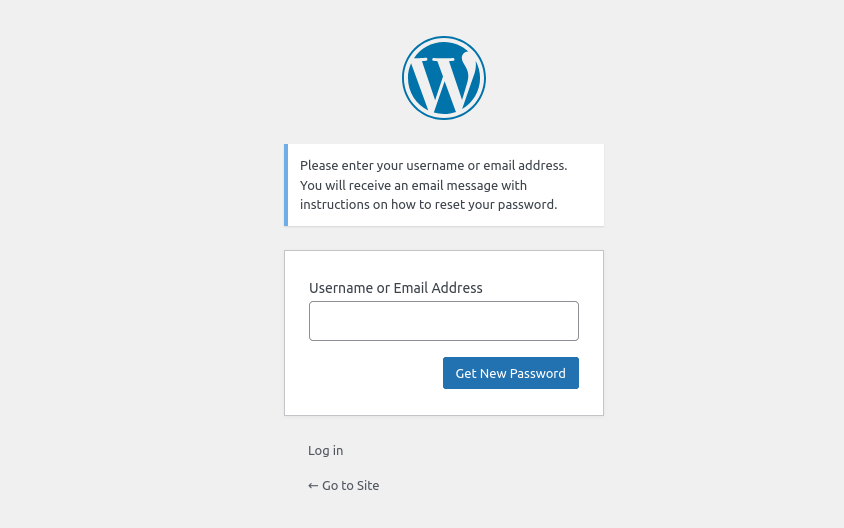
Method 1: The Standard "Lost Your Password?" Link (Easiest)
If your server’s email system functions correctly, this is the quickest route.
- Navigate to your WordPress login screen (
https://example.com/wp-login.phporhttps://example.com/wp-admin/). - Click the Lost your password? link below the login box.
- Enter your administrator Username or Email Address.
- Click Get New Password.
- Check your inbox for the password reset link, follow the URL, and type your new secure password.
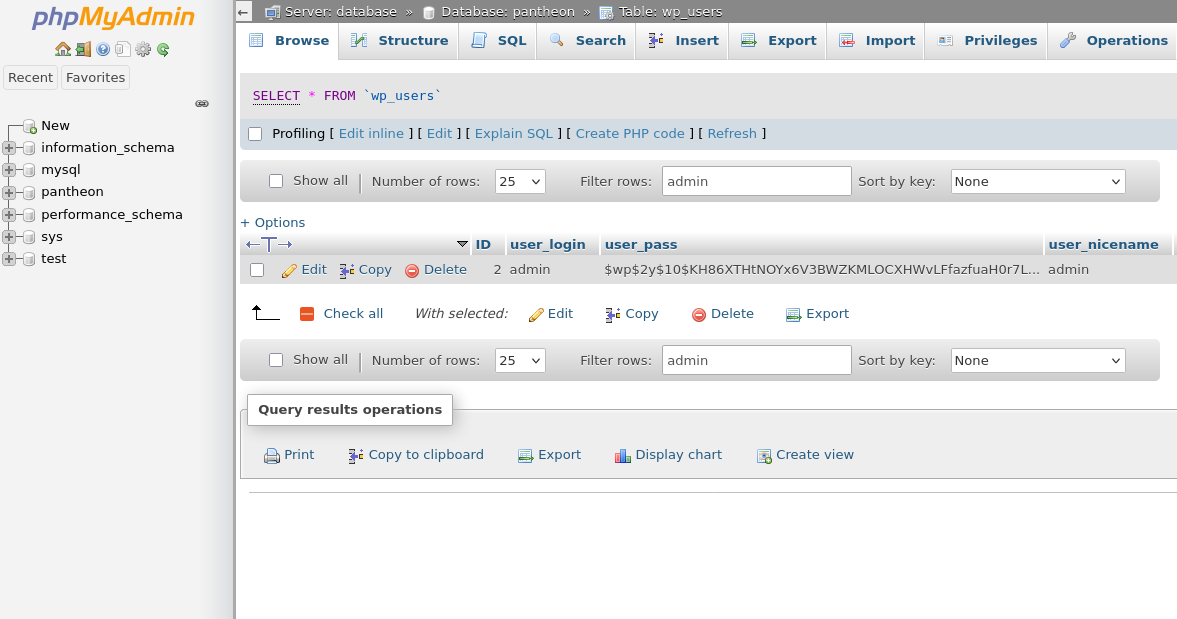
Method 2: Reset via phpMyAdmin (Most Popular Database Method)
When recovery emails fail to send, modifying the database directly via hosting tools like cPanel or Plesk is the standard industry workaround.
- Access
phpMyAdmin: Host control panel required. Log into your hosting account control panel (cPanel, SiteTools, or Plesk) and locate thephpMyAdminicon under the Database section. - Locate Your Database & Users Table: Select your website's database from the left sidebar. Scroll through the tables and click on
wp_users(Note: your database prefix might be different thanwp_, e.g.,wp54_users). - Edit the Admin Account: Find your administrator username under the
user_logincolumn and clickEdit(or the pencil icon) next to that row. - Apply the MD5 Hash & New Password: Locate the
user_passrow: In the Function drop-down menu, select MD5. In the Value field, delete the existing hashed string and type your desired new password in plain text. - Save and Test: Scroll to the bottom of the page and click Go to save changes. You can now log into your WordPress dashboard using the new password.
Method 3: Reset via FTP / File Manager (functions.php)
If you don't have database access but possess FTP credentials or access to your host's File Manager, you can force a password update via your active theme.
- Connect to your site using an FTP client (like FileZilla) or your host’s File Manager.
- Navigate to
/wp-content/themes/your-active-theme/. - Locate the
functions.phpfile, download a backup copy, and open the original for editing. - Directly after the opening
<?phptag at the very top, add this single line of code:wp_set_password( 'YourNewPassword123!', 1 )
(Replace 1 with the user ID of your admin account if it differs from the primary account). - Save and upload the file back to your server.
- Refresh your login page
https://example.com/wp-login.php. The code executes instantly and updates the password. - CRITICAL STEP: Re-open
functions.php, remove that line of code, and re-upload the file. Leaving this line in place will reset your password on every single page load.
// PHP
wp_set_password( 'YourNewPassword123!', 1 );
Navigate and edit this file /wp-content/themes/your-active-theme/functions.php.
Directly after the opening <?php tag at the very top, add this single line of code:wp_set_password( 'YourNewPassword123!', 1 );
Method 4: Reset via WP-CLI (Best for Developers & SSH Users)
If you have SSH access to your server, the WordPress Command Line Interface (WP-CLI) offers the fastest terminal-based recovery method.
Required: SSH Access, Installed WP CLI
#or
wp user reset-password admin --show-password
(Replace admin with your actual username).
First command will set new password for Admin user.
Second command will generate a new password for Admin user.
Summary
Getting locked out of WordPress is inconvenient, but it is rarely fatal to your site.
- First line of defense: Try the default reset link via email.
- No email arriving? Use phpMyAdmin to hash a new password using MD5, or edit functions.php temporarily via FTP.
- Power users: Execute a single WP-CLI command over SSH.
Once access is restored, configure an SMTP plugin (such as WP Mail SMTP) so future password reset emails arrive reliably, and keep a backup of your site before making manual database edits.